
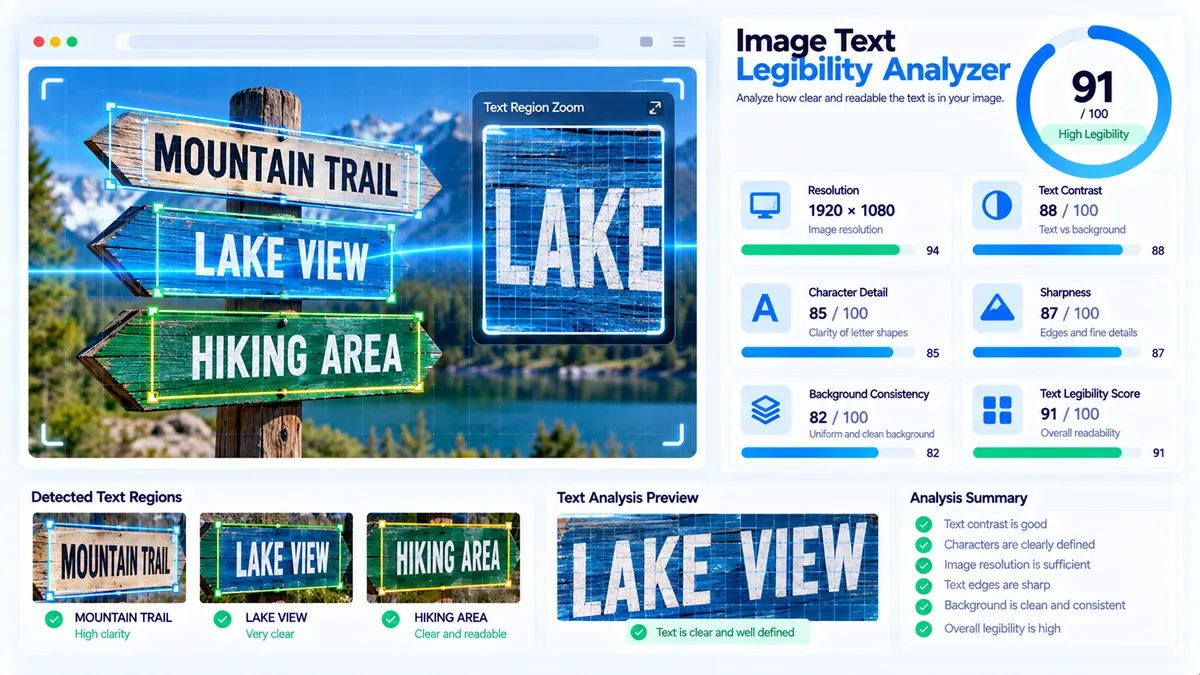
Image Text Legibility Analyzer helps you check whether text embedded inside an image has measurable visual conditions that support readable display. It performs a browser-side heuristic analysis of image resolution, text/background contrast, character-scale detail, sharpness, background consistency, compression and visual artefact signals, and supported image format. It does not perform OCR, call an AI model, or certify accessibility conformance.
Image Text Legibility Analyzer
Check whether text inside an image has measurable visual signals for human-readable display by analyzing resolution, contrast, character-scale detail, sharpness, background consistency and image format.
Upload an image to check text legibility
Embedded text legibility assessment
—
Text legibility checks
How to Use the Image Text Legibility Analyzer in Simple Steps
- Upload an image by dragging it into the upload area or choosing a file from your device.
- Click Analyze Text Legibility to run the browser-side analysis.
- Review the 0–100 text legibility score, image metrics, individual checks, and any detected flags.
- Use Copy Report, Copy JSON, Download JSON, or Download PDF to save the analysis.
The tool accepts JPG, PNG, WebP, GIF, BMP, and AVIF images when your browser can decode them. The maximum file size is 20 MB.
The analysis runs locally in your browser. The selected image is processed through a browser image and canvas workflow rather than being sent to an external AI service.
Technical Breakdown: What the Image Text Legibility Analyzer Measures
The Image Text Legibility Analyzer evaluates image-level visual signals that can affect how clearly embedded text appears. It does not read the actual words in the image. Instead, it measures characteristics such as pixel-level luminance differences, fine visual structure, image sharpness, background variation, image dimensions, and format.
Resolution for Embedded Text
The resolution check considers the image dimensions available for retaining embedded text detail. Smaller images can lose character detail when they are displayed, resized, or viewed at different sizes.
The analyzer considers the minimum and maximum image dimensions when producing its resolution check. Images with limited dimensions may receive a warning or lower result for this part of the assessment.
Text and Background Contrast Signal
The contrast signal is derived from sampled luminance differences and related pixel transitions across the image.
Stronger visual separation can provide a better baseline for distinguishing text from surrounding areas. Weak luminance separation can make low-contrast embedded text harder to distinguish.
This is an image-level heuristic signal. It is not a WCAG contrast-ratio calculation and should not be treated as accessibility conformance testing.
Character-Scale Detail
The analyzer evaluates fine visual structure that can be associated with small character shapes and other detailed image elements.
A stronger fine-detail signal indicates that the image contains more measurable local structure at the analyzed scale. Limited detail can make small characters harder to distinguish after resizing or compression.
Image Sharpness
The sharpness check evaluates local image transitions using a browser-side pixel analysis method.
Relatively crisp transitions provide a stronger baseline for embedded text display. Soft transitions can indicate blur, resampling, or other conditions that affect character boundaries.
Background Consistency
Background consistency measures variation across image regions.
A relatively consistent background can make embedded text easier to separate visually. Strong background variation can interfere with text regions, particularly when text is placed over photographs, textures, gradients, or visually complex areas.
Compression and Visual Artefact Signal
The analyzer also checks for high-frequency variation that may indicate visual artefact signals at the analysis scale.
A stronger artefact signal can interfere with fine character boundaries. This is particularly relevant when an image has undergone aggressive compression, repeated resizing, sharpening, or other transformations.
The check is a visual heuristic and does not identify the exact compression algorithm or prove that a particular JPEG setting was used.
Supported Image Format
The tool accepts JPG, PNG, WebP, GIF, BMP, and AVIF when the browser can decode the selected image.
The format check contributes to the overall result but does not claim that one supported format is universally better for every text-image use case.
Browser-Side Analysis
The image is decoded in the browser and drawn onto a canvas for pixel analysis. The analyzer reduces very large images to a maximum analysis dimension of approximately 1,600 pixels on the longest side before performing its sampled visual calculations.
The analysis considers image luminance, neighboring pixel differences, local detail, sharpness-related transitions, and regional background variation.
The result is therefore a heuristic image preflight rather than a measurement from an OCR engine or a specific AI vision model.
Understanding the 0–100 Score
The tool produces a text legibility score from 0 to 100.
A score of 80 or higher is presented as a Strong legibility baseline.
A score from 60 to 79 is presented as a Moderate legibility baseline.
A score below 60 is presented as a Limited legibility baseline.
The score combines individual checks covering resolution, text/background contrast, character-scale detail, sharpness, background consistency, compression and visual artefact signals, and supported image format.
The score describes measurable image conditions used by this analyzer. It does not guarantee that every text element will be readable at every display size, and it does not predict the output of a particular OCR or AI vision system.
For broader image preparation checks, use the AI Image Readiness Checker. For AI-oriented visual extraction signals, compare the image with the AI Vision Extractability Checker. For screenshot-specific analysis, the Screenshot AI Extractability Checker focuses on screenshot resolution, text detail, boundaries, layout structure, framing, and related signals.
What the Detected Flags Mean
The analyzer can flag several measurable conditions.
Small image dimensions means the minimum image dimension is below the analyzer’s internal threshold for the resolution check.
Weak contrast signal means the measured contrast signal is below the analyzer’s warning threshold.
Limited character-scale detail means the combined detail and contrast signals provide limited fine-detail evidence.
Soft image transitions means the measured sharpness signal is low.
Busy or inconsistent backgrounds means regional background variation is high enough to reduce the background consistency signal.
Strong high-frequency artefact signal means the sampled image contains a stronger high-frequency variation signal that may affect fine visual boundaries.
These flags identify areas worth reviewing; they do not diagnose the exact cause of the image problem.
Developer Snippets (Automate This Tool Offline)
The following examples provide basic offline preflight checks that can be used before running a screenshot or image through a larger workflow. They are not replacements for the PKCapra analyzer because they do not reproduce its complete browser-side pixel analysis.
Python
from PIL import Image
import os

path = "text-image.png"
max_bytes = 20 * 1024 * 1024

file_size = os.path.getsize(path)

if file_size > max_bytes:
    raise ValueError("Image exceeds the 20 MB limit.")

image = Image.open(path)

width, height = image.size
megapixels = (width * height) / 1_000_000
minimum_dimension = min(width, height)

print("Format:", image.format)
print("Dimensions:", width, "x", height)
print("Megapixels:", round(megapixels, 2))
print("Minimum dimension:", minimum_dimension)
print("File size MB:", round(file_size / 1024 / 1024, 2))

if minimum_dimension < 600:
    print("Warning: small image dimensions may affect small embedded text.")
PowerShell
$Path = "text-image.png"
$MaxBytes = 20MB

$File = Get-Item $Path

if ($File.Length -gt $MaxBytes) {
    throw "Image exceeds the 20 MB limit."
}

Add-Type -AssemblyName System.Drawing

$Image = [System.Drawing.Image]::FromFile($Path)

$Width = $Image.Width
$Height = $Image.Height
$MinimumDimension = [Math]::Min($Width, $Height)

Write-Output "Dimensions: $Width x $Height"
Write-Output "Minimum dimension: $MinimumDimension"
Write-Output ("File size MB: {0:N2}" -f ($File.Length / 1MB))

if ($MinimumDimension -lt 600) {
    Write-Output "Warning: small image dimensions may affect small embedded text."
}

$Image.Dispose()
Node.js
const fs = require("fs");

const file = "text-image.png";
const maxBytes = 20 * 1024 * 1024;

const stats = fs.statSync(file);

if (stats.size > maxBytes) {
  throw new Error("Image exceeds the 20 MB limit.");
}

console.log("File:", file);
console.log("Size MB:", (stats.size / 1024 / 1024).toFixed(2));

// Use a local image library such as sharp when
// dimensions and pixel-level measurements are required.
These scripts are useful for automated file and dimension checks. The PKCapra analyzer adds browser-side visual sampling for contrast, fine detail, sharpness, background consistency, artefact signals, and the combined text legibility assessment.
Native Software Workaround: Review Text Legibility in Microsoft PowerPoint
Microsoft PowerPoint can be used as a practical native workflow when you need to review text embedded in an image before publishing it.
Open PowerPoint and create a blank slide.
Select Insert → Pictures and add the image containing the embedded text.
Set the slide to the approximate display ratio where the image will be used. You can review the image at different sizes by resizing the picture while keeping its aspect ratio.
Zoom the slide to 100% and inspect small text, then reduce the zoom to simulate how the image may appear at a smaller display size.
Look for text that becomes difficult to distinguish because of low contrast, blur, insufficient resolution, or a busy background.
For a more measurable browser-side preflight, save the image and run it through the Image Text Legibility Analyzer.
If the image contains screenshots or interface documentation, also compare it with the Screenshot AI Extractability Checker.
Frequently Asked Questions
What is the Image Text Legibility Analyzer?
The Image Text Legibility Analyzer is a browser-side heuristic tool that evaluates image-level conditions associated with readable embedded text, including resolution, contrast, character-scale detail, sharpness, background consistency, artefact signals, and image format.
Does the tool read or extract the text?
The tool does not perform OCR and does not extract the words from the image. It analyzes visual conditions that can affect the readability of embedded text.
Does the analyzer use an AI model?
The analyzer does not call an AI model. Its result comes from browser-side heuristic image and pixel analysis.
What image formats are supported?
The supported formats are JPG, PNG, WebP, GIF, BMP, and AVIF when the browser can decode them.
What is the maximum file size?
The maximum supported file size is 20 MB.
What does the 0–100 score mean?
The 0–100 score represents the analyzer’s combined image-level text legibility baseline. Scores of 80 or higher are presented as strong, scores from 60 to 79 as moderate, and scores below 60 as limited.
Is the score a WCAG accessibility score?
The score is not a WCAG conformance result. The analyzer specifically states that its checks are heuristic image-level signals rather than accessibility certification or a WCAG contrast-ratio test.
Can a high score guarantee that small text is readable?
A high score cannot guarantee readability at every display size. The result is based on measurable image conditions and does not inspect every individual text element or test the image on every device and display.
Does the tool upload my image?
The image analysis is performed locally in the browser. The tool does not require an external AI image-processing service for its analysis.
Can I save the analysis?
The tool provides Copy Report, Copy JSON, Download JSON, and Download PDF actions for saving or sharing the result.
What should I do if the score is limited?
A limited result indicates that one or more measurable image characteristics may be affecting embedded text legibility. Review the image dimensions, text/background separation, fine detail, sharpness, background variation, and visual artefact signals shown in the individual checks.