
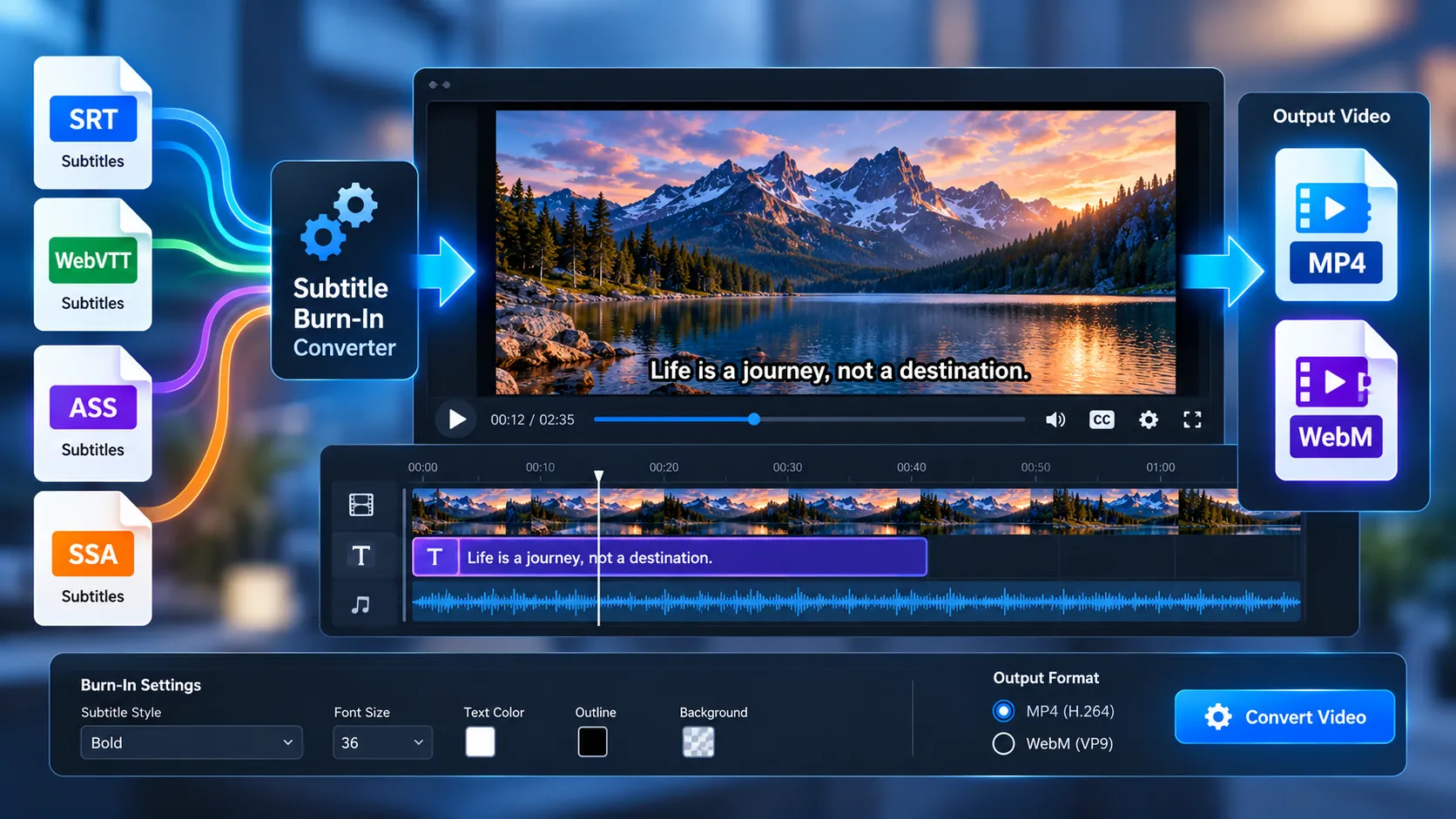
Permanently burn subtitles into your videos with the PKCapra Subtitle Burn-In Video Converter. Add SRT, WebVTT, ASS, or SSA subtitles and render the text directly into the video frames, creating a self-contained video where subtitles remain visible without requiring a separate subtitle track.
Subtitle Burn-In Video Converter
Render subtitle text directly into the video frames so it remains visible in players that do not support selectable subtitle tracks.
Choose the output and subtitle appearance
Burned subtitles become part of the video pixels and cannot be switched off after export. Processing is local to the browser.
Subtitles burned into video
Permanently Burn Subtitles Into Your Video
Burn subtitles directly into your video with the PKCapra Subtitle Burn-In Video Converter. Unlike subtitle muxing, which keeps subtitles as a separate selectable track, this tool permanently renders subtitle text into the video frames.
The result is a video where the subtitle text is part of the picture itself. This makes the subtitles visible in players, platforms, editing software, and devices that may not support external subtitle tracks.
All processing is performed locally in your browser using FFmpeg WebAssembly. Your video and subtitle files are not uploaded to PKCapra for processing.
How the Subtitle Burn-In Converter Works
- Select your video file.
- Add an SRT, WebVTT, ASS, or SSA subtitle file.
- Choose the subtitle rendering and output options.
- Start the burn-in process.
- PKCapra renders the subtitle text directly onto the video frames.
- The generated video is validated before it becomes available for download.
Because the subtitles are rendered into the video frames, the final file does not require a separate subtitle track.
Supported Subtitle Formats
The converter supports common subtitle formats:
- SRT
- WebVTT
- ASS
- SSA
SRT is a simple and widely supported subtitle format, while ASS and SSA can contain additional subtitle styling information.
Subtitle Rendering
The converter renders subtitle text directly onto the video rather than simply attaching the subtitle file to the output.
Available subtitle rendering controls include:
- Subtitle position
- Font size
- Text color
- Outline
- ASS/SSA source styling when supported by the selected rendering mode
The rendered result becomes part of every affected video frame.
Burn-In vs Subtitle Muxing
Subtitle burn-in and subtitle muxing produce different types of video files.
With subtitle muxing, the subtitle is stored as a separate stream inside the media container. Viewers may be able to enable, disable, or change the subtitle track depending on the player.
With subtitle burn-in, the subtitle is permanently rendered into the video image.
This means:
- The subtitles cannot be switched off in the finished video.
- The subtitle text remains visible even when the playback device does not support subtitle tracks.
- The subtitle appearance becomes part of the video pixels.
- The output does not depend on a separate subtitle file during playback.
If you want selectable subtitles instead, use the PKCapra Subtitle Muxer.
Supported Video Output
The converter provides video output options designed for common playback and sharing workflows.
MP4
MP4 output uses:
- H.264 video
- AAC audio
- YUV420P pixel format
- Fast-start metadata for improved web playback
WebM
WebM output uses:
- VP9 video
- Opus audio
- YUV420P pixel format
The original audio is retained when supported by the selected output format.
Browser-Based Processing
The Subtitle Burn-In Video Converter uses FFmpeg WebAssembly to process media directly in your browser.
This means the processing workflow does not require sending your video to a remote PKCapra processing server.
The browser handles:
- Video decoding
- Subtitle parsing
- Subtitle rendering
- Video encoding
- Output generation
- Output validation
Processing time depends on the video duration, resolution, subtitle complexity, selected output format, and the performance of your device.
Privacy-Friendly Video Processing
Your video and subtitle files are processed locally in the browser.
PKCapra does not need to upload your media to a server to perform the conversion.
For more information about how PKCapra handles privacy and personal data, see the PKCapra Privacy Policy.
File Size Limits
The converter is designed for browser-based processing and supports:
- Video files up to 500 MB
- Subtitle files up to 25 MB
Large videos may require more memory and processing time, particularly on mobile devices.
For the best experience with larger files, use a modern desktop browser with sufficient available memory.
Why Burn Subtitles Into a Video?
Permanent subtitles can be useful when:
- You need subtitles to remain visible on every playback device.
- The target platform does not reliably support external subtitle tracks.
- You are preparing social media or presentation videos.
- You want subtitle text to remain part of the visual composition.
- You do not want viewers to manually enable a subtitle track.
- You are distributing a video together with a single self-contained subtitle-rendered file.
Burn-In Does Not Create a Separate Subtitle Track
A correctly generated burn-in video contains the subtitle text inside the video frames.
The subtitle is therefore not stored as a separate selectable subtitle stream in the finished output.
This is different from the PKCapra Subtitle Muxer, where subtitles can remain available as a separate track.
Output Validation
The converter performs validation after encoding instead of treating the existence of an output file as proof that the conversion succeeded.
The generated video is checked to confirm that:
- The output file can be opened.
- The expected video stream exists.
- The output contains valid encoded video.
- The expected audio is retained when applicable.
- The output can be decoded.
- Subtitle rendering has produced visible changes in the video frames.
If the rendered subtitle result cannot be validated, the converter does not treat the output as a successful burn-in result.
Subtitle Timing
Subtitle timing is taken from the supplied subtitle file.
For example:
00:00:00,000 --> 00:00:02,500
Welcome to PKCapra.
The subtitle appears during its specified time range and is rendered into the corresponding video frames.
Accurate subtitle timing therefore depends on the timing information contained in your subtitle file.
Subtitle Styling
Subtitle appearance can be adjusted using the available rendering controls.
Depending on the selected subtitle format and rendering mode, you can control options such as:
- Position
- Font size
- Text color
- Outline
- Source styling for ASS/SSA subtitles
Styling options can affect the appearance and readability of the final video because the rendered text becomes permanent video content.
Tips for Better Results
Use a Modern Browser
Browser-based video encoding can be demanding. A current version of Chrome, Edge, Firefox, or another modern browser is recommended.
Keep Large Projects Reasonable
Long, high-resolution videos require more memory and processing time. If your device struggles with a large file, consider reducing the source resolution or splitting the project into smaller sections before processing.
Check Subtitle Timing
Make sure the subtitle timestamps match the video before starting the conversion.
Preview Your Subtitle File
If subtitles appear too early, too late, or for the wrong duration, check the subtitle timestamps rather than changing the video itself.
Use Burn-In When Subtitles Must Always Be Visible
If viewers must see the subtitles regardless of their player settings, permanent burn-in is the appropriate workflow.
Common Use Cases
Social Media Videos
Burned-in subtitles can make dialogue visible without relying on the viewer to enable a subtitle track.
Educational Videos
Permanent captions can keep important spoken information visible throughout a lesson.
Promotional Videos
Marketing and promotional videos can use burned-in subtitles when the final visual appearance needs to remain consistent across platforms.
Compatibility Workflows
Burn-in can help when the playback environment does not reliably support external subtitle tracks.
Multilingual Video Versions
You can create separate video versions with different subtitle files when each language needs to be permanently rendered into the picture.
Frequently Asked Questions
Are subtitles permanently added to the video?
Yes. The purpose of this tool is to render subtitle text directly into the video frames. Once exported, the burned-in text is part of the video image.
Can I turn the burned-in subtitles off?
No. Burned-in subtitles are permanently rendered into the video. If you need subtitles that viewers can enable or disable, use subtitle muxing instead.
Does the output contain a separate subtitle track?
No. Burn-in renders the subtitle into the video pixels rather than storing it as a separate subtitle stream.
Which subtitle formats are supported?
The converter supports SRT, WebVTT, ASS, and SSA subtitle files.
Can I use ASS or SSA subtitles with their styling?
Yes. ASS and SSA source styling can be used where supported by the selected rendering mode.
Does the tool upload my video?
No. Processing is designed to take place locally in your browser using FFmpeg WebAssembly.
What is the maximum video size?
The current browser-processing limit is 500 MB for the video file.
What is the maximum subtitle file size?
The current subtitle file limit is 25 MB.
Does the converter preserve audio?
Yes, supported input audio is retained in the generated output when the selected output format supports the audio stream.
Which output formats are available?
The converter supports MP4 with H.264/AAC and WebM with VP9/Opus.
Why is my output taking a long time?
Burn-in requires video frames to be decoded, subtitle text to be rendered, and the video to be encoded again. Longer and higher-resolution videos require more processing time.
Can I use the tool on a phone?
Yes, the converter is designed for modern browsers, but video encoding is resource-intensive. Desktop devices generally provide more memory and processing capacity for larger projects.
What happens if subtitle rendering fails?
The converter validates the generated output before treating the operation as successful. If the subtitle rendering cannot be verified, the output is not presented as a valid completed burn-in result.
Subtitle Burn-In vs Subtitle Muxing
Choose Subtitle Burn-In when the subtitle must permanently appear in the picture.
Choose Subtitle Muxing when you want subtitles stored as a selectable track that can potentially be turned on or off during playback.
You can also explore the complete collection of PKCapra free online tools for other browser-based media and productivity utilities.
For media conversion tools and related workflows, visit the PKCapra All Tools directory.
Important Notice
PKCapra provides this tool for general media-processing purposes. Subtitle rendering, timing, formatting, encoding, and playback compatibility can vary depending on the source media, subtitle format, browser, device, and selected output settings.
Always review the exported video before using it for publishing, distribution, archival, or other important purposes.
Start Burning Subtitles Into Your Video
Select your video, add your subtitle file, choose your preferred rendering and output settings, and start the conversion.
PKCapra will render the subtitles directly into the video and validate the generated result before presenting it as a completed burn-in file.