
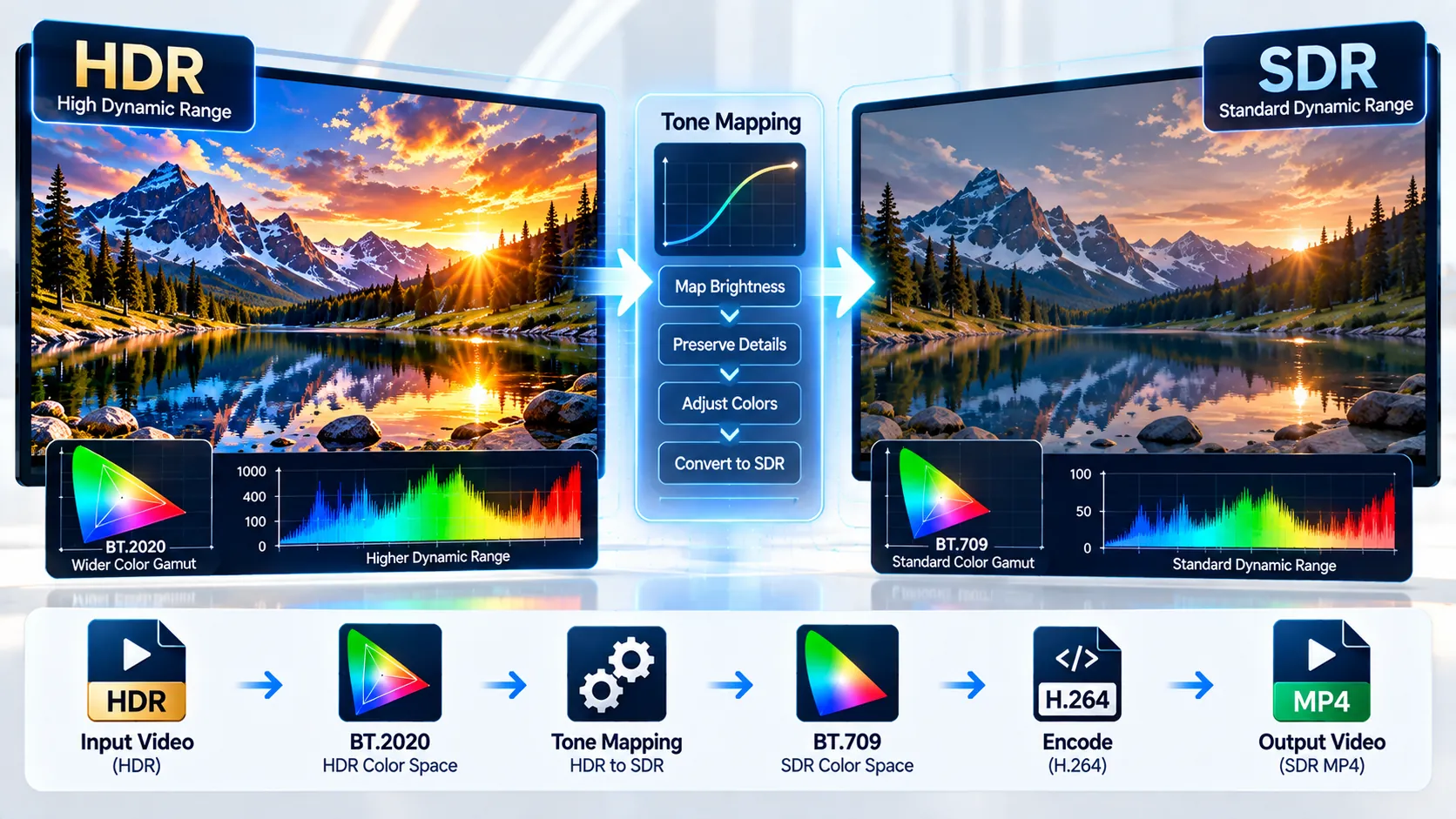
HDR → SDR Video Converter converts HDR video into standard-dynamic-range H.264 MP4 with BT.709 color signaling using browser-local FFmpeg WebAssembly. The tool analyzes the source video for HDR-related transfer, color-primary, matrix, range, codec, pixel-format, dimensions, frame-rate, aspect-ratio, duration, and audio information before conversion. It supports Mobius, Hable, and Reinhard tone mapping, three video-quality levels, and explicit audio handling while keeping source media inside the browser processing workflow.
HDR → SDR Video Converter
Inspect HDR transfer and color metadata, then tone-map high-dynamic-range video into a standardized SDR H.264 MP4 while keeping processing inside your browser.
HDR analysis
Choose the tone-mapping method
The converter tone-maps HDR video through FFmpeg, converts the color signal to BT.709 SDR, encodes H.264 yuv420p, and writes an MP4 with fast-start metadata.
SDR MP4 ready
—
How to Use the HDR → SDR Video Converter in Simple Steps
- Select or drag in your HDR video. Add a local video file to the converter. The browser workflow supports input files up to 500 MB.
- Review the HDR analysis. The tool reads the primary video stream and reports codec, pixel format, dimensions, frame-rate signal, SAR/DAR when available, duration, audio information, transfer characteristic, color primaries, and matrix/range evidence.
- Check the HDR diagnosis. The tool identifies HDR-related metadata such as SMPTE ST 2084 or ARIB STD-B67 transfer characteristics and/or BT.2020 color primaries. This is diagnostic metadata evidence rather than a claim that every HDR file contains complete mastering metadata.
- Choose a tone-mapping method. Select Mobius, Hable, or Reinhard according to the desired tone-mapping workflow.
- Choose video quality. Select High — CRF 18, Balanced — CRF 20, or Smaller — CRF 23.
- Choose audio output. Select Keep source audio, AAC, or Remove audio.
- Start the conversion. The browser loads FFmpeg WebAssembly when required and performs the HDR-to-SDR processing locally.
- Wait for SDR validation. The output is checked for H.264 video,
yuv420ppixel format, and SDR color signaling. The tool rejects an output that still reports SMPTE ST 2084 or ARIB STD-B67 HDR transfer characteristics. - Validate the audio path. When audio preservation is selected, the expected audio stream is decoded and validated before the download state is exposed.
- Download the validated MP4. The generated H.264 MP4 uses BT.709 SDR signaling and
+faststartfor progressive MP4 playback.
You can explore additional browser-based utilities in the PKCapra free online tools collection and browse the wider PKCapra tools directory.
Technical breakdown of the tool’s competitive edge
HDR-to-SDR conversion is not simply a matter of changing a color label. HDR video can use different transfer characteristics and wider color primaries, so the converter first examines the source metadata before applying a tone-mapping operation.
The source analysis reports the primary video’s codec, pixel format, coded dimensions, frame-rate signal, SAR/DAR when reported, duration, audio presence and codec, transfer characteristic, color primaries, and matrix/range evidence.
HDR classification uses reported HDR transfer metadata such as SMPTE ST 2084 or ARIB STD-B67, together with evidence such as BT.2020 color primaries. The analysis is intentionally presented as diagnostic evidence because HDR files do not necessarily contain complete mastering metadata.
The conversion pipeline transforms the HDR signal through a linear-light stage using FFmpeg zscale, applies the selected tone-mapping curve, and then converts the result to BT.709 SDR color characteristics. The output is forced to 8-bit yuv420p, encoded with libx264, written as an H.264 MP4, and marked with explicit BT.709 SDR color metadata.
Three tone-mapping methods are available:
- Mobius: A tone-mapping curve available through FFmpeg’s
tonemapfilter. - Hable: A filmic tone-mapping curve available through FFmpeg.
- Reinhard: A classic tone-mapping curve available through FFmpeg.
The converter does not expose these methods as interchangeable metadata presets. They are actual processing paths applied during HDR-to-SDR conversion.
Video quality is controlled through three predefined CRF settings:
- CRF 18: High quality.
- CRF 20: Balanced quality and file size.
- CRF 23: Smaller output with greater compression.
Audio handling is independent of the HDR color conversion. Keep source audio explicitly maps the primary audio stream and attempts direct stream copy first. If direct copying fails or final audio validation fails, the workflow retries with AAC encoding. AAC provides an explicit re-encoding path, while Remove audio creates a video-only output.
Output validation is part of the conversion rather than an optional inspection step. The generated MP4 is decoded through FFmpeg, the primary video stream is checked for H.264 and yuv420p, and the output is rejected if it still reports SMPTE ST 2084 or ARIB STD-B67 HDR transfer characteristics. When audio preservation is selected, the expected audio stream must also pass validation before the download URL is exposed.
The processing architecture uses browser-local FFmpeg WebAssembly loaded on demand. Source media remains inside the browser-local processing memory and is not sent to a PKCapra upload endpoint. Temporary FFmpeg files and generated browser object URLs are cleaned up when the workflow is cleared.
The converter also maintains persistent progress, diagnosis, conversion, completion, error, reset, and remove states so that a long-running WebAssembly operation does not depend on a single transient interface message.
Developer Snippets (Automate This Tool Offline)
The core HDR-to-SDR workflow can also be automated locally with FFmpeg.
HDR to SDR with Mobius tone mapping
ffmpeg -i input-hdr.mp4 \
  -vf "zscale=transfer=linear:npl=100,format=gbrpf32le,tonemap=mobius,zscale=primaries=bt709:transfer=bt709:matrix=bt709,format=yuv420p" \
  -c:v libx264 -crf 18 \
  -c:a copy \
  -movflags +faststart \
  output-sdr.mp4
This workflow converts the HDR signal into a linear-light representation, applies the Mobius tone-mapping curve, converts the result to BT.709 characteristics, and produces 8-bit yuv420p H.264 output.
HDR to SDR with Hable tone mapping
ffmpeg -i input-hdr.mp4 \
  -vf "zscale=transfer=linear:npl=100,format=gbrpf32le,tonemap=hable,zscale=primaries=bt709:transfer=bt709:matrix=bt709,format=yuv420p" \
  -c:v libx264 -crf 20 \
  -c:a copy \
  -movflags +faststart \
  output-sdr-hable.mp4
HDR to SDR with Reinhard tone mapping
ffmpeg -i input-hdr.mp4 \
  -vf "zscale=transfer=linear:npl=100,format=gbrpf32le,tonemap=reinhard,zscale=primaries=bt709:transfer=bt709:matrix=bt709,format=yuv420p" \
  -c:v libx264 -crf 23 \
  -c:a copy \
  -movflags +faststart \
  output-sdr-reinhard.mp4
Use AAC instead of source-audio copy
ffmpeg -i input-hdr.mp4 \
  -vf "zscale=transfer=linear:npl=100,format=gbrpf32le,tonemap=mobius,zscale=primaries=bt709:transfer=bt709:matrix=bt709,format=yuv420p" \
  -c:v libx264 -crf 18 \
  -c:a aac -b:a 192k \
  -movflags +faststart \
  output-sdr-aac.mp4
Create a video-only SDR output
ffmpeg -i input-hdr.mp4 \
  -vf "zscale=transfer=linear:npl=100,format=gbrpf32le,tonemap=mobius,zscale=primaries=bt709:transfer=bt709:matrix=bt709,format=yuv420p" \
  -an \
  -c:v libx264 -crf 18 \
  -movflags +faststart \
  output-sdr-no-audio.mp4
Inspect HDR metadata before conversion
ffprobe -v error \
  -select_streams v:0 \
  -show_entries stream=codec_name,pix_fmt,width,height,r_frame_rate,sample_aspect_ratio,display_aspect_ratio,color_transfer,color_primaries,color_space,color_range \
  -of default=noprint_wrappers=1 \
  input-hdr.mp4
This inspection helps identify transfer characteristics, color primaries, matrix/color-space information, range, dimensions, frame rate, and pixel format before choosing an HDR-to-SDR workflow.
Validate the SDR output
ffprobe -v error \
  -select_streams v:0 \
  -show_entries stream=codec_name,pix_fmt,width,height,r_frame_rate,color_transfer,color_primaries,color_space,color_range \
  -of default=noprint_wrappers=1 \
  output-sdr.mp4
A typical output from this workflow should report H.264 video, yuv420p, and BT.709 SDR color characteristics rather than SMPTE ST 2084 or ARIB STD-B67 HDR transfer signaling.
Native software workaround integration tutorial
A native desktop workflow can reproduce the same HDR-to-SDR process with FFmpeg installed locally.
Begin by inspecting the source with ffprobe. Look specifically at the transfer characteristic, color primaries, color space, pixel format, frame rate, and audio streams. HDR metadata can vary between files, so the inspection should happen before the conversion command is selected.
For a Mobius-based SDR conversion with high video quality:
ffmpeg -i input-hdr.mp4 \
  -vf "zscale=transfer=linear:npl=100,format=gbrpf32le,tonemap=mobius,zscale=primaries=bt709:transfer=bt709:matrix=bt709,format=yuv420p" \
  -c:v libx264 -crf 18 \
  -c:a copy \
  -movflags +faststart \
  output-sdr.mp4
If the audio stream needs re-encoding:
ffmpeg -i input-hdr.mp4 \
  -vf "zscale=transfer=linear:npl=100,format=gbrpf32le,tonemap=mobius,zscale=primaries=bt709:transfer=bt709:matrix=bt709,format=yuv420p" \
  -c:v libx264 -crf 18 \
  -c:a aac -b:a 192k \
  -movflags +faststart \
  output-sdr-aac.mp4
To compare tone-mapping approaches, run the same source through Hable and Reinhard while keeping the other processing parameters consistent:
ffmpeg -i input-hdr.mp4 \
  -vf "zscale=transfer=linear:npl=100,format=gbrpf32le,tonemap=hable,zscale=primaries=bt709:transfer=bt709:matrix=bt709,format=yuv420p" \
  -c:v libx264 -crf 20 \
  -c:a copy \
  -movflags +faststart \
  output-hable.mp4

ffmpeg -i input-hdr.mp4 \
  -vf "zscale=transfer=linear:npl=100,format=gbrpf32le,tonemap=reinhard,zscale=primaries=bt709:transfer=bt709:matrix=bt709,format=yuv420p" \
  -c:v libx264 -crf 20 \
  -c:a copy \
  -movflags +faststart \
  output-reinhard.mp4
After conversion, validate both the video and audio streams:
ffprobe -v error \
  -show_entries stream=index,codec_type,codec_name,pix_fmt,width,height,r_frame_rate,color_transfer,color_primaries,color_space,color_range,channels,sample_rate \
  -of json \
  output-sdr.mp4
The native workflow is useful for batch processing, scripted pipelines, larger media collections, and environments where FFmpeg is already installed. The PKCapra browser workflow is useful when you want local processing without installing a desktop media-processing stack.
Additional practical workflows and utilities are available through the PKCapra Resources section.
Frequently Asked Questions
What is HDR-to-SDR conversion?
HDR-to-SDR conversion is the process of transforming high-dynamic-range video into standard-dynamic-range video using tone mapping and SDR color characteristics. This converter produces H.264 MP4 output with BT.709 SDR signaling.
How does the converter detect HDR video?
HDR detection uses reported transfer characteristics such as SMPTE ST 2084 or ARIB STD-B67 and/or BT.2020 color-primary evidence. The analysis also reports codec, pixel format, dimensions, frame rate, SAR/DAR, duration, audio, matrix, and range information when available.
What is tone mapping?
Tone mapping is the conversion process that maps HDR brightness information into the smaller display range available to an SDR representation. The converter provides Mobius, Hable, and Reinhard tone-mapping paths.
What is the difference between Mobius, Hable, and Reinhard?
Mobius, Hable, and Reinhard are different tone-mapping curves available through FFmpeg. They can produce different mappings of HDR brightness and contrast into the SDR range, so the appropriate choice depends on the source and desired visual result.
What color format does the output use?
The output uses BT.709 SDR color signaling and 8-bit yuv420p H.264 video in an MP4 container.
Does the converter remove HDR metadata?
The conversion pipeline does more than remove a metadata label. It transforms the HDR signal through a linear-light stage, applies tone mapping, converts the result to BT.709 characteristics, forces 8-bit yuv420p, and validates that the output does not still report SMPTE ST 2084 or ARIB STD-B67 HDR transfer characteristics.
Can I keep the original audio?
Source-audio preservation is supported. The converter explicitly maps the primary audio stream, attempts direct stream copy first, and retries with AAC encoding if direct copying fails or final audio validation fails.
Can I remove the audio?
Audio removal is supported. Selecting Remove audio creates a video-only SDR output.
What does CRF 18, 20, or 23 mean?
CRF is a video encoding quality control used by the H.264 encoder. This converter provides CRF 18 for high quality, CRF 20 for a balanced setting, and CRF 23 for a smaller output.
Does the converter upload my HDR video?
The converter processes source media locally through browser-based FFmpeg WebAssembly rather than sending the source video to a PKCapra upload endpoint. Temporary browser-local processing resources and generated object URLs are cleaned up when the workflow is cleared. The site’s broader data-handling information is available in the PKCapra Privacy Policy.
What is the maximum input size?
The browser workflow has a 500 MB input limit. This is a defined safety boundary for local WebAssembly processing.
Why does the tool validate the output for HDR transfer metadata?
Output HDR validation prevents an output from being presented as successfully converted if it still reports SMPTE ST 2084 or ARIB STD-B67 HDR transfer characteristics. The converter also checks the H.264 and yuv420p video path before exposing the download.
Will every HDR video have complete HDR metadata?
No. HDR files do not necessarily contain complete mastering metadata. The converter therefore treats transfer, primaries, matrix, and range information as available diagnostic evidence rather than assuming that every source contains a complete HDR description.