
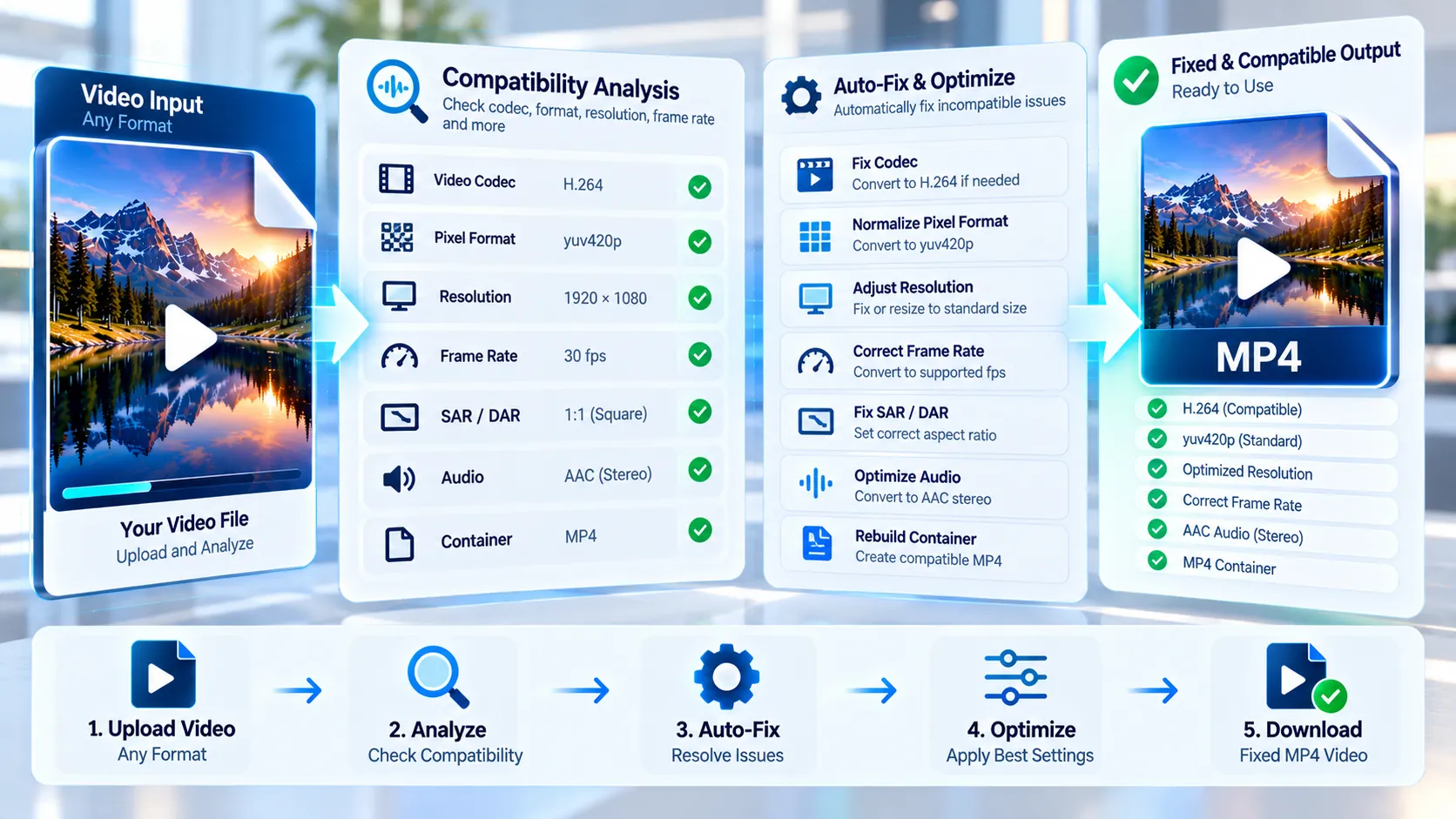
Video Compatibility Checker + Auto-Fixer is a browser-local video compatibility tool that first inspects the source file, identifies concrete differences from a practical browser-friendly MP4 profile, and then rebuilds the video when you need a more standardized output. The checker examines the primary video and audio streams, including codec, pixel format, dimensions, frame-rate signal, SAR/DAR, audio codec, audio sample rate and channels, and container evidence. The auto-fix path produces an MP4 using H.264 video, 8-bit yuv420p, MP4 fast-start packaging, and AAC 48 kHz stereo audio when audio is retained. Processing is performed locally in the browser through FFmpeg WebAssembly rather than sending the selected media to a PKCapra upload endpoint.
Video Compatibility Checker + Auto-Fixer
Check a local video against a practical browser-friendly MP4 profile, see the specific compatibility risks, and rebuild the file when a fix is needed.
What the source is doing
Choose the target output
Compatibility is profile-based, not a guarantee for every player or device. This checker reports concrete stream properties and tests the exported MP4 by decoding its video and expected audio streams.
Compatible MP4 ready
—
How to Use the Video Compatibility Checker + Auto-Fixer in Simple Steps
- Select a video file with the file picker or drag the file into the tool.
- Wait for the compatibility analysis to complete. The checker reads the primary video and audio streams and builds a compatibility report.
- Review the compatibility score and issue cards. The report can flag deviations involving H.264 video, 8-bit yuv420p, even dimensions, MP4-family packaging, AAC audio, or 48 kHz audio.
- If the source already matches the tool’s current browser-friendly criteria, you can still use Auto-Fix when you need a standardized MP4 output.
- Choose the target settings provided by the tool, including video quality and frame-rate policy where available.
- Choose an audio policy: keep source audio, normalize audio to AAC, or remove audio.
- Click Auto-Fix and Export MP4 to start the local FFmpeg conversion.
- Keep the browser tab open while the conversion runs. The interface reports processing progress and conversion status.
- The tool validates the generated MP4 before exposing the download. The primary video must decode as H.264 yuv420p, and an expected audio stream must pass audio validation when audio is retained.
- Download the validated MP4 and test it in the player or application where you need to use it.
The tool has a 500 MB browser input limit. Large video files can require substantial browser memory during analysis and conversion, so available system memory and browser resources can affect processing performance.
Technical breakdown of the tool’s competitive edge
The core advantage is that the tool separates compatibility diagnosis from compatibility repair. Instead of blindly converting every file, it first reads the source characteristics and reports the specific properties that differ from its current browser-friendly target profile.
The compatibility analysis covers:
- Primary video codec
- Pixel format
- Coded width and height
- Frame-rate signal
- Sample Aspect Ratio (SAR)
- Display Aspect Ratio (DAR)
- Primary audio codec
- Audio sample rate
- Audio channel information
- Input container evidence
The current compatibility profile checks for H.264 video, 8-bit yuv420p, even dimensions, MP4-family packaging evidence, AAC audio when audio exists, and 48 kHz audio when audio exists. These checks describe a practical browser-oriented target rather than a universal guarantee for every device, operating system, media player, editing application, or streaming platform.
The Auto-Fix output uses a standardized MP4 pipeline:
- H.264 video through
libx264 - H.264 High profile / Level 4.1 target
- 8-bit
yuv420p - MP4 container
+faststartpackaging- CRF 18, 20, or 23 quality selection
- Preserve source frame rate or normalize to 24, 25, or 30 fps
- AAC 48 kHz stereo when AAC audio mode is selected
- Optional source-audio preservation
- Optional audio removal
- Metadata and chapters removed from the fixed output
When Keep source audio is selected, the tool explicitly maps the primary audio stream and attempts direct audio stream copying first. If that audio cannot be safely muxed into the MP4 or fails post-export validation, the conversion can retry using AAC.
This audio strategy is important because video compatibility conversions should not silently produce a video-only file when the source contains audio. The final file is checked before the download becomes available.
The output validation stage also prevents the interface from presenting an unverified conversion as successful. FFmpeg decodes the final file, the primary video stream is inspected for the expected H.264/yuv420p characteristics, and expected audio is validated when audio retention was selected.
The processing architecture is browser-local. The selected media is kept in browser-side FFmpeg processing memory instead of being uploaded to a PKCapra server endpoint. Temporary FFmpeg files and generated object URLs are cleaned up after processing or reset operations.
The tool is therefore most useful when the problem is a practical compatibility mismatch such as an unsupported video codec, non-browser-friendly pixel format, non-MP4 container, unusual audio format, or audio sample-rate difference. It is not a universal repair engine for every possible video defect.
Developer Snippets (Automate This Tool Offline)
The same compatibility-oriented workflow can be automated locally with FFmpeg when you need repeatable batch processing outside the browser.
Standard browser-friendly MP4 conversion
ffmpeg -i input.mov \
  -map 0:v:0 \
  -map 0:a:0? \
  -c:v libx264 \
  -profile:v high \
  -level:v 4.1 \
  -pix_fmt yuv420p \
  -crf 20 \
  -c:a aac \
  -ar 48000 \
  -ac 2 \
  -movflags +faststart \
  -map_metadata -1 \
  -map_chapters -1 \
  output.mp4
This explicitly selects the primary video stream and optional primary audio stream, converts video to H.264/yuv420p, normalizes retained audio to AAC 48 kHz stereo, removes metadata and chapters, and creates a fast-start MP4.
Normalize the frame rate to 30 fps
ffmpeg -i input.mkv \
  -map 0:v:0 \
  -map 0:a:0? \
  -vf "fps=30" \
  -c:v libx264 \
  -profile:v high \
  -level:v 4.1 \
  -pix_fmt yuv420p \
  -crf 20 \
  -c:a aac \
  -ar 48000 \
  -ac 2 \
  -movflags +faststart \
  -map_metadata -1 \
  -map_chapters -1 \
  output-30fps.mp4
This is useful when a target workflow requires a stable 30 fps output instead of preserving the source frame-rate signal.
Produce a video-only compatibility output
ffmpeg -i input.webm \
  -map 0:v:0 \
  -c:v libx264 \
  -profile:v high \
  -level:v 4.1 \
  -pix_fmt yuv420p \
  -crf 20 \
  -movflags +faststart \
  -map_metadata -1 \
  -map_chapters -1 \
  output-video-only.mp4
The -map 0:v:0 selection deliberately excludes audio.
Inspect a source before deciding whether conversion is required
ffprobe -v error \
  -show_entries format=format_name,duration \
  -show_entries stream=index,codec_type,codec_name,profile,pix_fmt,width,height,r_frame_rate,sample_aspect_ratio,display_aspect_ratio,sample_rate,channels \
  -of json \
  input.mp4
This produces machine-readable stream information that can be used by a local automation script to decide whether a file already meets a defined compatibility profile.
For automated workflows, always validate the generated file after conversion rather than treating FFmpeg’s process exit alone as sufficient proof that the output is suitable for the target application.
Native software workaround integration tutorial
A desktop workflow can reproduce the main purpose of the online tool with FFmpeg and FFprobe.
Start by running ffprobe against the source file and inspect the video codec, pixel format, dimensions, frame-rate signal, container, audio codec, sample rate, and channel count. Compare those values with the requirements of the application or playback environment you are targeting.
If the source already uses H.264 video, yuv420p, even dimensions, MP4 packaging, and a compatible audio stream, a full conversion may not be necessary. If the source uses VP9, AV1, HEVC, an unusual pixel format, a non-MP4 container, or an audio configuration that your target software rejects, rebuild it into the standardized MP4 profile.
For a repeatable desktop workflow:
- Run
ffprobeon the source. - Record the primary video and audio stream properties.
- Decide whether the source requires only remuxing or a full video rebuild.
- Use
libx264withyuv420pfor the video target. - Use AAC 48 kHz stereo when audio normalization is required.
- Add
-movflags +faststartfor MP4 output intended for progressive browser playback. - Remove metadata and chapters when a clean standardized output is required.
- Run
ffprobeon the resulting MP4. - Decode-test the output with FFmpeg before distributing it to another application.
For repeated jobs, this process can be wrapped in a shell script or another local automation system. The important part is to keep the analysis and validation steps instead of converting files without checking the resulting streams.
Frequently Asked Questions
What is a Video Compatibility Checker + Auto-Fixer?
A Video Compatibility Checker + Auto-Fixer is a browser-local tool that analyzes a video’s technical streams and can rebuild the file into a standardized browser-friendly MP4 profile.
What does the compatibility checker actually inspect?
The compatibility checker inspects the primary video and audio streams, including codec, pixel format, dimensions, frame-rate signal, SAR/DAR, audio codec, audio sample rate, audio channels, and container evidence.
Does a compatibility score guarantee that my video will play everywhere?
A compatibility score is a practical compatibility assessment, not a universal playback guarantee. Different browsers, devices, operating systems, applications, decoders, and platform pipelines can impose additional requirements.
What does Auto-Fix change?
Auto-Fix rebuilds the selected source toward H.264 High/Level 4.1 video, 8-bit yuv420p, MP4 fast-start packaging, and compatible audio handling. The fixed output also removes metadata and chapters.
Does Auto-Fix preserve the original video quality?
Auto-Fix re-encodes the video, so the output is not a bit-for-bit copy of the source. CRF 18, 20, and 23 provide selectable quality targets, with lower CRF values generally allocating more data to the encoded video.
Can I keep the source audio?
Source audio can be retained. The tool attempts direct audio copying first and can fall back to AAC when the source audio cannot be safely retained in the MP4 output or fails validation.
Can I remove audio completely?
Audio removal is supported. A video-only MP4 can be generated when the Remove Audio option is selected.
Can I normalize the frame rate?
Frame-rate normalization is supported through the available frame-rate controls. The tool can preserve the source frame-rate policy or normalize to 24, 25, or 30 fps.
Does the tool upload my video to PKCapra?
The tool uses browser-local FFmpeg WebAssembly processing, and the selected source media remains in browser-side processing memory rather than being sent to a PKCapra upload endpoint.
What is the maximum input file size?
The browser input limit is 500 MB. Actual processing performance can also depend on available browser memory, device resources, video duration, resolution, codec complexity, and the selected encoding settings.
Why does the tool validate the output before showing the download?
Output validation confirms that the generated MP4 actually decodes and exposes the expected video and audio streams. The download is presented only after the required validation succeeds.
Does this tool repair every type of video problem?
The tool targets practical compatibility mismatches rather than every video-engineering defect. Problems involving timestamps, GOP structure, interlacing, HDR transfer, or other specialized video characteristics may require a dedicated repair or conversion workflow.
Where can I find other PKCapra video tools?
PKCapra’s video and audio utilities are organized within the wider tool collection. Start with All Free Online Tools or browse the Video & Audio category to find related media workflows.