
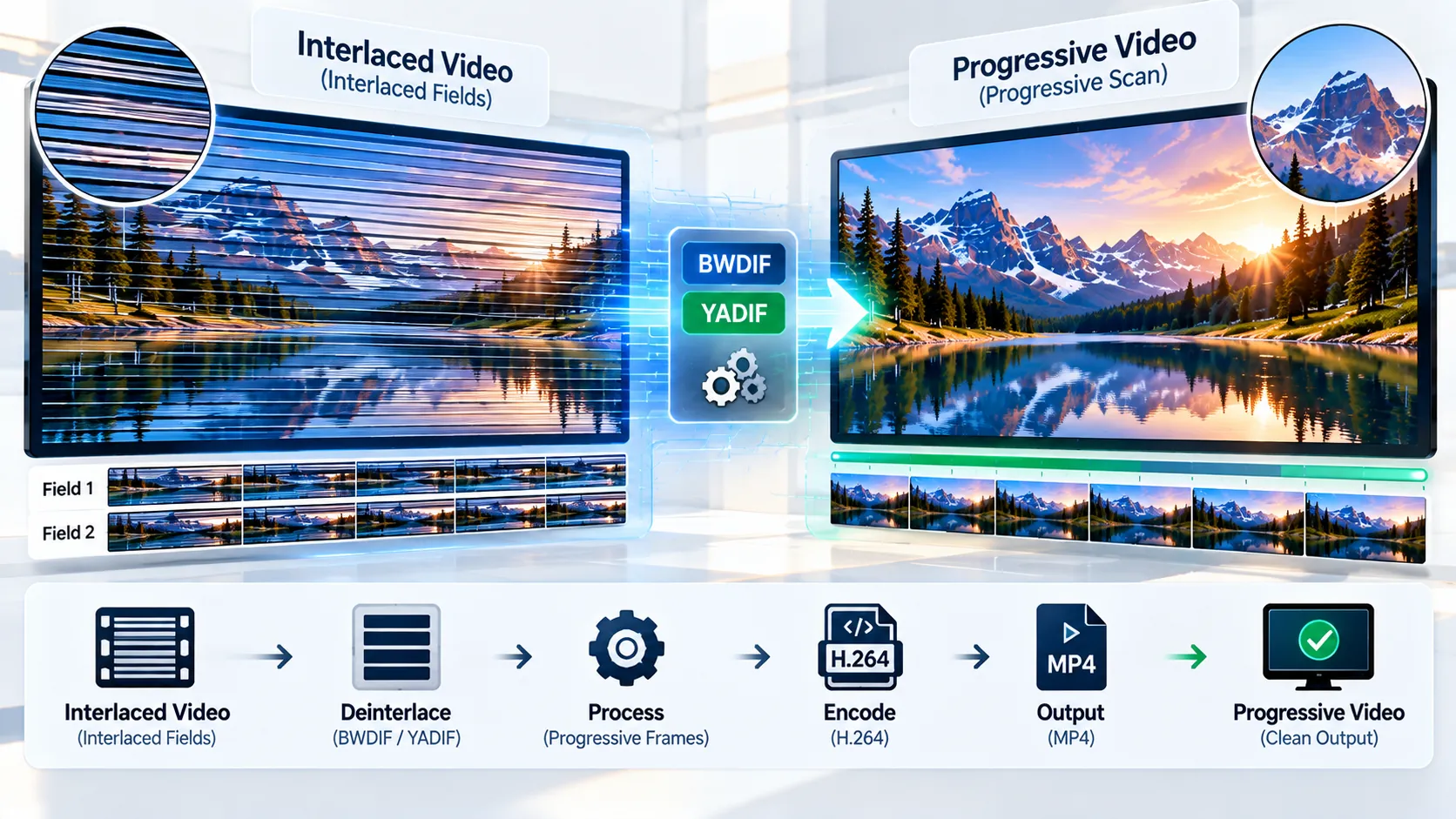
Interlaced-to-Progressive Video Converter is a browser-based video processing tool that converts interlaced footage into progressive H.264 MP4 video using local FFmpeg WebAssembly. It analyzes the source field structure before conversion and lets you choose the deinterlacing method, output frame-rate behavior, video quality, and audio handling. Processing takes place locally in the browser, so the source media is not sent to a PKCapra media-processing upload endpoint.
Interlaced → Progressive Video Converter
Detect interlaced field structure, then deinterlace the video into a progressive H.264 MP4 while keeping processing inside your browser.
Interlace analysis
Choose the deinterlacing method
The converter re-encodes the video through a deinterlacing filter, forces progressive H.264 yuv420p output, and writes an MP4 with fast-start metadata.
MP4 ready
—
How to Use the Interlaced-to-Progressive Video Converter in Simple Steps
- Select or drag in your video. Add a local video file to the converter. The browser workflow supports input files up to 500 MB.
- Review the interlace analysis. The tool uses FFmpeg
idetanalysis to report progressive and interlaced detections, TFF/BFF field-order evidence, dimensions, frame rate, and primary audio information. - Check the source warning. If the video is predominantly progressive, the tool warns that applying deinterlacing may reduce detail. You can still continue when intentional processing is required.
- Choose the deinterlacing method. Select BWDIF — quality-focused or YADIF — widely supported.
- Choose the output frame rate. Select Preserve frame rate to maintain the source frame-rate cadence or Double frame rate to produce one progressive frame per source field.
- Choose video quality. Select High — CRF 18, Balanced — CRF 20, or Efficient — CRF 23.
- Choose audio output. Keep the source audio, encode audio to AAC, or remove audio from the resulting MP4.
- Start the conversion. FFmpeg WebAssembly processes the video locally in the browser.
- Wait for output validation. The generated media is checked before the tool reports the conversion as successful.
- Download the progressive MP4. The resulting H.264 MP4 is created locally, while generated browser object URLs and processing resources are cleaned up when the workflow is reset or removed.
You can find additional browser-based utilities in the PKCapra free online tools collection and browse the broader PKCapra tools directory.
Technical breakdown of the tool’s competitive edge
The Interlaced-to-Progressive Video Converter uses field analysis before conversion instead of treating every uploaded video as interlaced. FFmpeg idet is used to inspect the source and provide evidence about progressive frames, interlaced fields, TFF/BFF field order, coded dimensions, frame rate, and audio presence.
This analysis is important because progressive footage does not normally require deinterlacing. When the scan is predominantly progressive, the interface explicitly reports that condition and warns that applying deinterlacing can reduce detail. The user can then decide whether processing is still required.
The converter provides two deinterlacing methods:
- BWDIF — quality-focused: Uses FFmpeg’s BWDIF deinterlacing filter for motion-adaptive processing.
- YADIF — widely supported: Uses FFmpeg’s YADIF filter as an alternative deinterlacing method.
The output frame-rate setting is also explicit. Preserve frame rate produces one progressive output frame per source frame. Double frame rate produces one progressive frame per input field, increasing the temporal output frame count.
The video output is encoded as H.264 with yuv420p pixel format inside an MP4 container. Three predefined CRF choices provide practical quality levels:
- CRF 18: High quality.
- CRF 20: Balanced quality and file size.
- CRF 23: More efficient output with greater compression.
Audio processing is handled separately from the video pipeline. When Keep source audio is selected, the converter explicitly detects and maps the source audio stream rather than relying on a hard-coded stream position. Compatible source audio can be copied directly, with AAC encoding available when re-encoding is required. Final output validation checks that the resulting media contains the expected streams before the download state is presented.
The converter operates through browser-local FFmpeg WebAssembly. Source media therefore remains in the local browser processing workflow instead of being uploaded to a PKCapra media-processing server. The 500 MB input limit provides a defined browser-side safety boundary for WebAssembly processing.
The interface also maintains explicit upload, analysis, conversion, progress, completion, error, reset, and remove states. Generated object URLs and browser-local processing resources are cleaned up when the relevant workflow is cleared.
Developer Snippets (Automate This Tool Offline)
The same basic deinterlacing workflow can be automated locally with FFmpeg.
BWDIF with preserved frame rate
ffmpeg -i input.mp4 \
  -vf "bwdif=mode=send_frame:parity=auto:deint=all" \
  -c:v libx264 -crf 18 -pix_fmt yuv420p \
  -c:a copy \
  -movflags +faststart \
  output-progressive.mp4
send_frame keeps one progressive output frame per source frame. parity=auto allows FFmpeg to determine field parity, while deint=all processes the input through the deinterlacing filter.
YADIF with preserved frame rate
ffmpeg -i input.mp4 \
  -vf "yadif=mode=send_frame:parity=auto:deint=all" \
  -c:v libx264 -crf 20 -pix_fmt yuv420p \
  -c:a copy \
  -movflags +faststart \
  output-progressive-yadif.mp4
BWDIF with double frame rate
ffmpeg -i input.mp4 \
  -vf "bwdif=mode=send_field:parity=auto:deint=all" \
  -c:v libx264 -crf 18 -pix_fmt yuv420p \
  -c:a copy \
  -movflags +faststart \
  output-progressive-double-rate.mp4
send_field produces one progressive frame per input field and therefore increases the temporal output frame count compared with send_frame.
Inspect the source field structure
ffmpeg -i input.mp4 -filter:v idet -frames:v 500 -f null -The idet output can be inspected before conversion to determine whether the source contains sustained progressive, TFF, or BFF evidence.
Validate the resulting video stream
ffprobe -v error \
  -select_streams v:0 \
  -show_entries stream=codec_name,pix_fmt,width,height,field_order,r_frame_rate \
  -of default=noprint_wrappers=1 \
  output-progressive.mp4
This inspection provides the codec, pixel format, dimensions, field-order state, and frame-rate information of the generated video.
Validate video and audio together
ffprobe -v error \
  -show_entries stream=index,codec_type,codec_name,pix_fmt,width,height,field_order,r_frame_rate,channels,sample_rate \
  -of json \
  output-progressive.mp4
This is useful when an automated workflow must verify that the video became progressive while the expected audio stream remained present.
Native software workaround integration tutorial
A native desktop workflow can reproduce the converter’s main processing path with FFmpeg installed locally.
First inspect the source with ffprobe and idet. Confirm the dimensions, frame rate, audio streams, and field structure before applying a deinterlacing filter. This prevents unnecessary processing of footage that is already progressive.
For a quality-focused BWDIF conversion while preserving the source frame-rate cadence:
ffmpeg -i input.mp4 \
  -vf "bwdif=mode=send_frame:parity=auto:deint=all" \
  -c:v libx264 -crf 18 -pix_fmt yuv420p \
  -c:a copy \
  -movflags +faststart \
  output.mp4
If the source audio cannot be copied into the output configuration, use AAC encoding:
ffmpeg -i input.mp4 \
  -vf "bwdif=mode=send_frame:parity=auto:deint=all" \
  -c:v libx264 -crf 18 -pix_fmt yuv420p \
  -c:a aac -b:a 192k \
  -movflags +faststart \
  output.mp4
For double-frame-rate deinterlacing:
ffmpeg -i input.mp4 \
  -vf "bwdif=mode=send_field:parity=auto:deint=all" \
  -c:v libx264 -crf 18 -pix_fmt yuv420p \
  -c:a aac -b:a 192k \
  -movflags +faststart \
  output-double-rate.mp4
After conversion, inspect the resulting file:
ffprobe -v error \
  -show_entries stream=index,codec_type,codec_name,pix_fmt,width,height,field_order,r_frame_rate,channels,sample_rate \
  -of json \
  output.mp4
The native workflow is useful for batch processing, scripted media pipelines, larger files, and existing FFmpeg-based production systems. The browser converter provides the same general processing concept without requiring a local FFmpeg installation.
Additional practical workflows and utilities are available through the PKCapra Resources section.
Frequently Asked Questions
What is an interlaced video?
An interlaced video stores temporal image information across separate fields instead of storing each displayed frame as a complete progressive frame. TFF and BFF identify the two common field-order arrangements.
What does an interlaced-to-progressive converter do?
An interlaced-to-progressive converter reconstructs progressive frames from interlaced fields through a deinterlacing process such as BWDIF or YADIF. This tool then encodes the result as progressive H.264 MP4.
How does the converter detect interlaced footage?
The converter uses FFmpeg idet analysis to inspect progressive and interlaced field evidence and reports TFF/BFF information, progressive detections, dimensions, frame rate, and audio information.
What happens when the source is already progressive?
An already-progressive source can still be converted, but unnecessary deinterlacing can reduce detail. The tool therefore reports predominantly progressive footage and displays a warning before allowing the conversion to continue.
What is the difference between BWDIF and YADIF?
BWDIF and YADIF are FFmpeg deinterlacing filters with different processing implementations. The converter exposes BWDIF as its quality-focused option and YADIF as a widely supported alternative.
What does Preserve frame rate mean?
Preserve frame rate produces one progressive output frame for each source frame. The output therefore follows the source frame-rate cadence instead of creating a separate progressive frame for every input field.
What does Double frame rate mean?
Double frame rate produces one progressive output frame per source field. This increases the temporal output frame count compared with the preserve-frame-rate mode.
Can the converter keep the original audio?
Source-audio preservation is supported. The converter explicitly detects and maps the audio stream, attempts compatible source-audio copying, and provides AAC encoding when audio re-encoding is required.
Does the converter upload videos to PKCapra?
The converter processes source media locally through browser-based FFmpeg WebAssembly rather than sending the video to a PKCapra media-processing upload endpoint. Generated browser resources are cleaned up when the workflow is reset or removed. The site’s broader data-handling information is available in the PKCapra Privacy Policy.
What is the maximum input size?
The browser converter accepts files up to 500 MB. This is a defined browser-side processing limit for the WebAssembly workflow.
Why can deinterlacing reduce detail on progressive footage?
Progressive footage already contains complete progressive frames. Applying a deinterlacing filter unnecessarily processes those frames and can reduce fine detail, which is why the converter identifies predominantly progressive sources before conversion.