
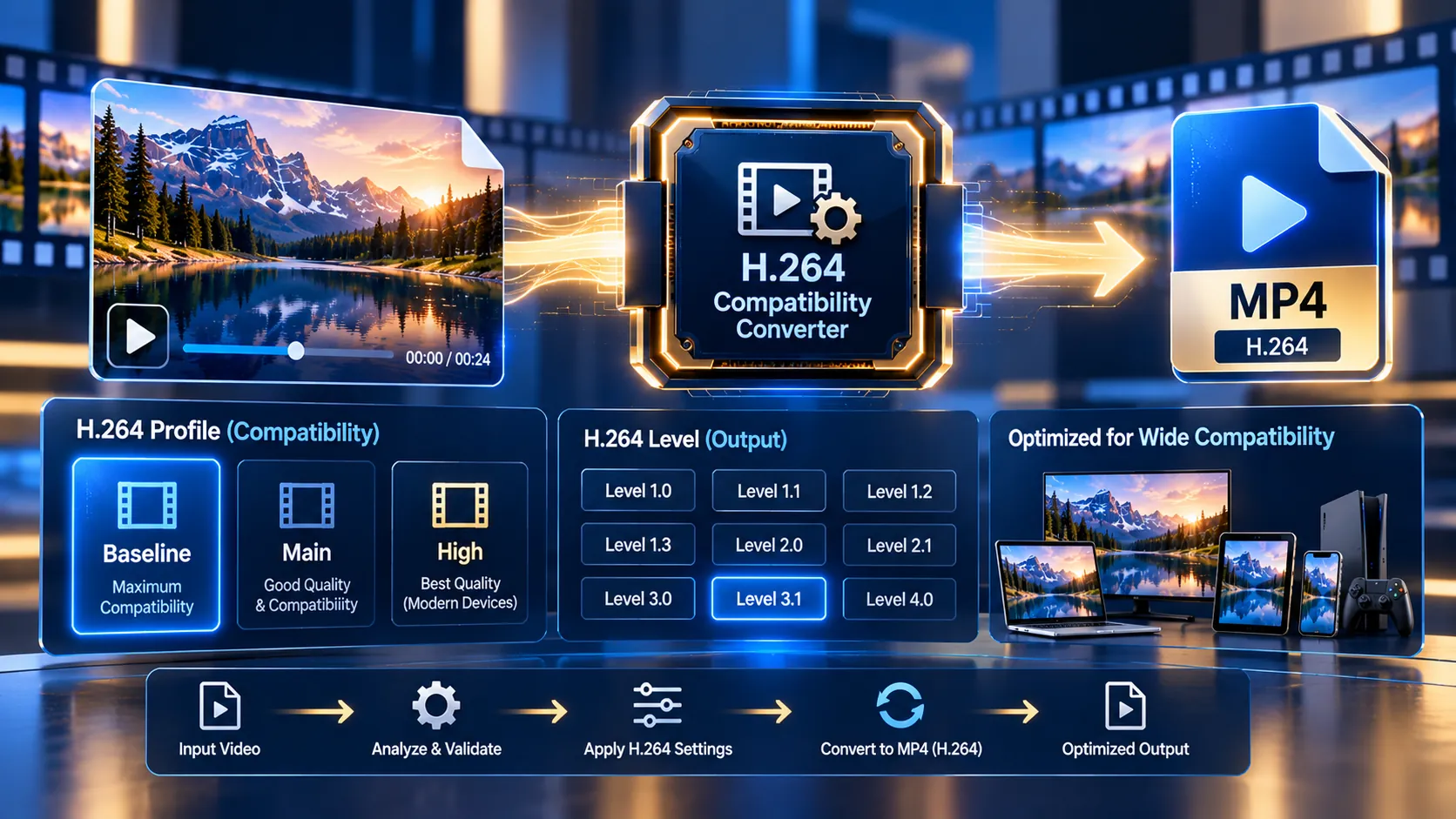
Convert your video to a controlled H.264 MP4 format directly in your browser, with selectable Baseline, Main, or High profiles, optional H.264 levels, configurable audio handling, and validated output. The tool analyzes the source video first, then rebuilds it with libx264 and yuv420p while keeping processing in browser-local FFmpeg WebAssembly.
H.264 Compatibility Converter
Inspect the source video profile, level, pixel format and stream structure, then rebuild it as a standardized H.264 MP4 for a more controlled compatibility target.
Video stream profile
Choose the target compatibility profile
The converter re-encodes the video with libx264, forces yuv420p for broad 8-bit 4:2:0 compatibility, and writes an MP4 with fast-start metadata.
MP4 ready
—
How to Use the H.264 Compatibility Converter in Simple Steps
- Select or drag your video file into the converter. The tool accepts browser-local input up to 500 MB.
- Review the source analysis, including codec, H.264 profile and level when available, pixel format, dimensions, frame-rate signal, SAR/DAR, duration, and audio information.
- Choose the target H.264 profile — Baseline, Main, or High — and select Auto or an explicit H.264 level from 3.0 through 5.2. Choose Very Fast, Faster, or Balanced encoding, then select Keep source audio, AAC, or Remove audio.
- Start the conversion and download the validated MP4 after the output H.264 stream and expected audio stream have been checked.
Technical breakdown of the tool’s competitive edge
The H.264 Compatibility Converter performs its media processing locally in the browser through FFmpeg WebAssembly. The source video is kept in browser-local processing memory rather than being sent to a PKCapra upload endpoint.
The analysis stage reads the primary video stream and reports the source codec, H.264 profile and level when those parameters can be read, pixel format, coded dimensions, frame-rate signal, SAR/DAR, duration, and audio presence/codec. For H.264 sources, trace_headers is used to inspect profile_idc and level_idc. A non-H.264 source is treated as a source that needs an H.264 rebuild.
The conversion path re-encodes the video with libx264, forces yuv420p for an 8-bit 4:2:0 output, applies the selected H.264 profile and optional explicit level, and writes an MP4 with +faststart.
Audio handling is explicit. Keep source audio maps the primary audio stream and attempts direct stream copy first. If the audio cannot be safely muxed into MP4 or fails post-export validation, the converter retries with AAC encoding. AAC can also be selected directly, while Remove audio creates a video-only output. Expected audio is validated before the download is exposed.
The final video is validated as a decodable stream and inspected with trace_headers to confirm that the produced stream is H.264 and to read its resulting profile and level where available.
The interface includes drag-and-drop and file selection, persistent processing status, source compatibility metrics, a diagnosis panel, profile and level controls, reset/remove handling, validated MP4 download, and cleanup of temporary FFmpeg files and generated object URLs.
The browser input limit is 500 MB. Conversion is performed locally, but browser memory and device resources can affect processing time and practical file-size limits.
Developer Snippets (Automate This Tool Offline)
The same H.264 conversion model can be reproduced offline with FFmpeg when browser processing is not required. The following command converts a source to H.264 Main with yuv420p, keeps the source audio when MP4-compatible, and enables fast-start MP4 output:
ffmpeg -i input.mp4 -map 0:v:0 -map 0:a:0? -c:v libx264 -profile:v main -pix_fmt yuv420p -c:a copy -movflags +faststart output.mp4For a predictable AAC audio track instead of source-audio copying:
ffmpeg -i input.mp4 -map 0:v:0 -map 0:a:0? -c:v libx264 -profile:v main -pix_fmt yuv420p -c:a aac -b:a 192k -movflags +faststart output.mp4For a video-only Baseline-compatible output:
ffmpeg -i input.mp4 -map 0:v:0 -c:v libx264 -profile:v baseline -pix_fmt yuv420p -an -movflags +faststart output.mp4An explicit H.264 level can be supplied with -level:v. For example, this creates a High Profile Level 4.1 output:
ffmpeg -i input.mp4 -map 0:v:0 -map 0:a:0? -c:v libx264 -profile:v high -level:v 4.1 -pix_fmt yuv420p -c:a aac -b:a 192k -movflags +faststart output.mp4These commands are offline FFmpeg equivalents of the converter’s processing model; they are not API calls to PKCapra.
Native software workaround integration tutorial
VLC can be used as a desktop playback/conversion fallback when the immediate requirement is to create an H.264 MP4 outside the browser.
Open the source video in VLC and use Media → Convert / Save. Add the source file, select Convert / Save, choose a video conversion profile, and configure an H.264 video codec with an MP4 container. Select an appropriate audio codec when audio should be retained, then choose the destination file and start the conversion.
For compatibility-focused work, verify the resulting file with a media inspection tool after conversion. The PKCapra converter performs explicit output H.264 validation and audio validation; a generic desktop conversion workflow should not be assumed to provide those same validation checks automatically.
Frequently Asked Questions
What does an H.264 Compatibility Converter do?
An H.264 Compatibility Converter rebuilds a video as H.264 MP4 using a selected H.264 profile and optional level so the resulting video follows a more controlled compatibility target.
Which H.264 profiles are available?
The converter provides Baseline, Main, and High H.264 profile targets.
Which H.264 levels can I select?
The converter provides Auto plus explicit levels 3.0, 3.1, 4.0, 4.1, 4.2, 5.0, 5.1, and 5.2.
What does Auto level mean?
Auto level lets x264 select the encoded H.264 level based on the selected profile and source characteristics rather than forcing a specific level value.
Can I convert a non-H.264 video?
A non-H.264 video can be rebuilt as H.264 MP4. The converter treats non-H.264 input as a source requiring an H.264 rebuild.
Can the converter keep my original audio?
Keep source audio attempts to preserve the primary audio stream by direct stream copy first and falls back to AAC when MP4 muxing or post-export validation requires it.
Can I remove audio completely?
Remove audio creates a video-only MP4 output.
Does the converter upload my video?
The converter processes source media in browser-local FFmpeg WebAssembly memory and does not use a PKCapra upload endpoint for the media-processing path.
What is the maximum input size?
The browser input cap is 500 MB.
Is every converted file guaranteed to work with every device or application?
No universal playback guarantee can be made. The converter validates the resulting H.264 video stream and expected audio stream, but compatibility can still depend on the receiving device, application, container handling, profile/level requirements, and other playback constraints.
For broader PKCapra navigation, use the All Free Online Tools directory, All Tools, Categories, and Resources. PKCapra’s Privacy Policy explains the site’s privacy practices.